

Congratulations on Completing your Enrollment!
Please follow the steps below to complete your intake
and to schedule your new patient appointment

Download the SigmaMD app here: https://sigmamd.com/app-download

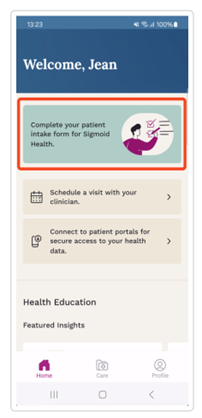
2. Once you have downloaded the app, please complete the Patient Intake Process by tapping the box to complete the patient intake form for Sigmoid Health (and no, I don’t know why it’s SigmaMD and Sigmoid Health in different places!)
Enter your Personal Information. This information becomes part of your chart which I will use to order your medications, labs, and things like x-rays and referrals. Please be sure to include your home address, otherwise I cannot place any orders for you.
Once all the required fields are completed, scroll to the bottom and tap Next.
Upload a Photo ID. Please either take a new photo or upload an existing one of your driver’s license or passport that shows your photo with your name within the frame.
Complete the Lifestyle Questionnaire. This is a series of questions about your diet, exercise, and other health habits which will become part of your chart. We can get more done during your initial visit with this completed ahead of time.
Health Records section: SigmaMD offers a feature that allows patients to connect to supported external patient portals and import their health data securely into the SigmaMD system. This enables a seamless integration of valuable health information including conditions, allergies, medications, and procedures which is also shared with your clinician within SigmaMD.
Enter Family History: Tap Add Relative to enter details. Enter conditions for each relative (type the name of the condition and tap Add).
Complete the Women's Health section if appropriate.
Complete the Intake Process by tapping Done to submit the intake form. All submitted information will be available for Dr. Oakley to access in the SigmaMD electronic health record. Most patient intake data is automatically visible in your record but some information requires review by Dr. Oakley before being added to your chart. You can always add additional family history or lifestyle information later by clicking the bottom right “Profile” button.
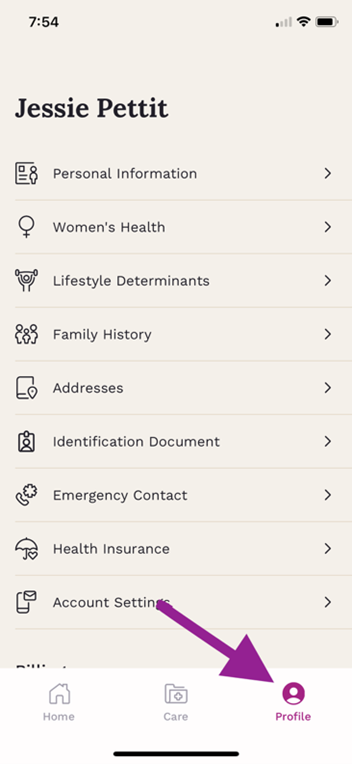
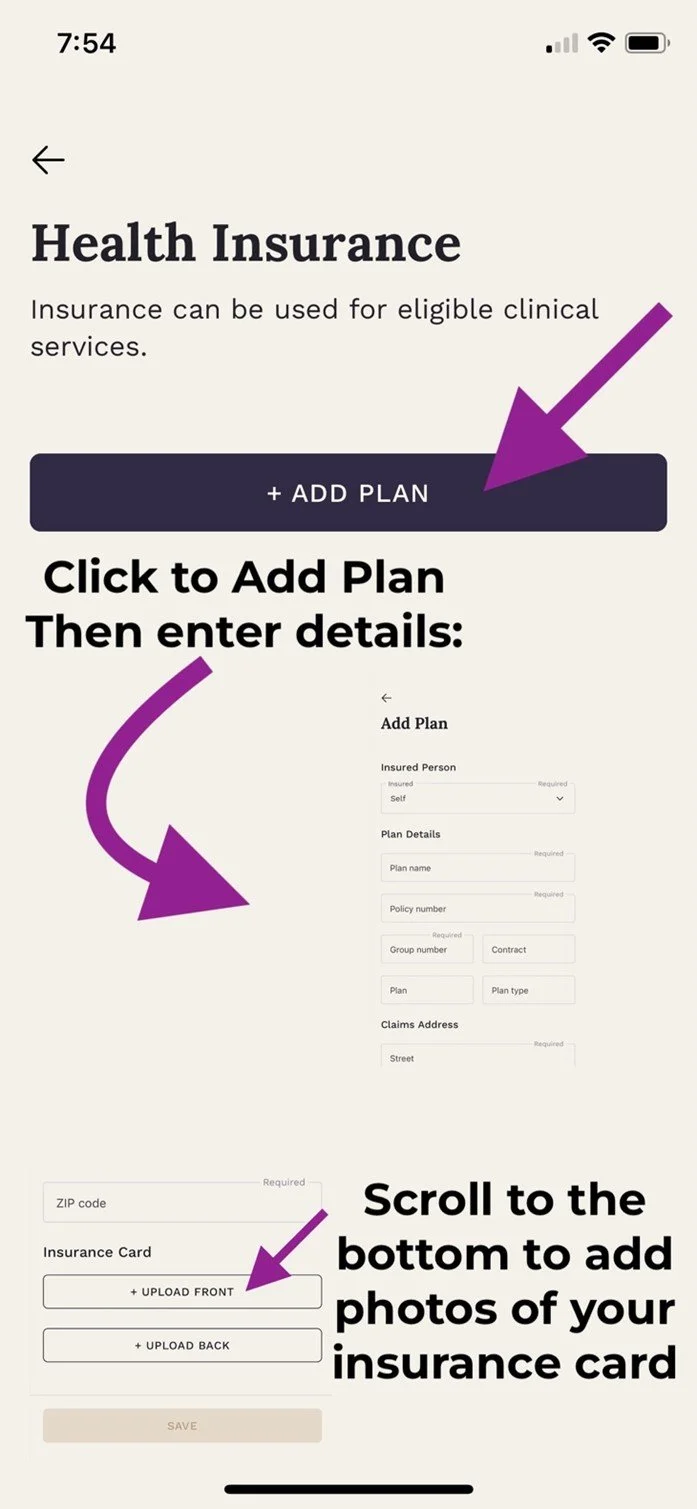
3. If you wish to use your health insurance for labs, imaging like xrays or mammograms, or medications, please click the bottom right “Profile” button as pictured above from the home screen of the app, and then click “Health Insurance” to enter your plan details and upload a copy of your insurance card. Please bring your insurance card to our visits so we can double check details before I place any orders that you may want to run through your insurance.
4. Now you schedule your New Patient Appointment on the SigmaMD app. You can do this by going to the Home view on the APP and clicking the button to “Schedule a visit with your clinician”. Once you have completed the enrollment AND completed the New Patient Appointment you are an active patient with Oakley Pine Family Medicine.
If you have any questions you can send a chat through SigmaMD App or you can email hello@oakleypinedpc.com.